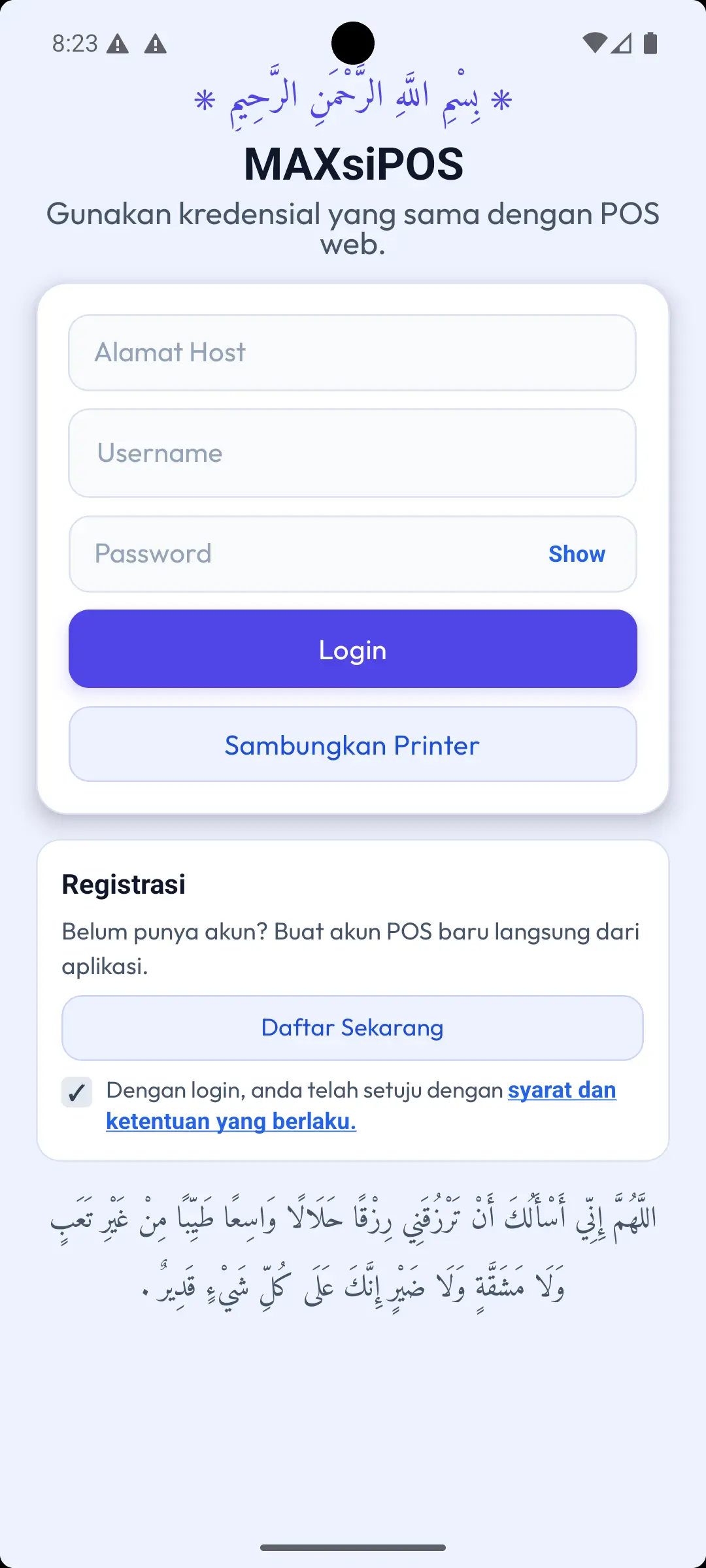
Login
## Purpose
The Login page is used to sign in to the MAXsi POS app using your POS web account.
How to log in
- Enter the Host Address (example:
https://toko.maxsi.id or the host provided to you).
- Enter your Username and Password.
- Make sure the Terms & Conditions checkbox is checked.
- Tap “Login”.
Features on the Login page
- Show/Hide Password: “Show/Hide” button on the right side of the password field.
- Biometric Login: appears when biometrics are enabled and credentials have been saved.
- Connect Printer: opens the printer connection screen.
- Register Now: opens the registration page to create a new POS account.
- Terms & Conditions link: opens the policy page inside a WebView.
Important notes
- If the Terms checkbox is not checked, login cannot be processed.
- After successful login, credentials are saved to make future logins easier.
- Biometric login is available only if:
- your device supports biometrics,
- biometrics are enabled in the app,
- biometric credentials have been saved (you must log in manually at least once).
Note: This guide content may still be in Indonesian while we prepare the English version.
Published by: MAXsi POS —
Android POS App